
A great image can still get trapped inside a messy workflow. Files disappear across drives, feedback arrives in five email threads, social graphics take longer than the edit, and oversized portfolio images slow the website.
Sound familiar? Adobe’s 2026 creator survey found that 75% of respondents who use creative AI now consider it integrated or essential to their workflow, which shows how quickly digital production habits are changing.
The real question is not whether you need more software. It is which tools remove friction without weakening your creative control. This guide covers practical options for editing, collaboration, delivery, storage, design, and web optimization.
Here’s What’s Inside

The best online tools for photographers should solve a specific bottleneck and save enough time to justify their cost. This comparison gives you a starting point.
| Tool | Best for | Main advantage |
| Lightroom on the web | Cloud photo editing | Edit and organize across devices |
| Photopea | Free browser-based retouching | Layers, masks, RAW and PSD support |
| Canva | Social and marketing graphics | Fast branded layouts |
| Capture One Live | Remote image review | Real-time ratings and comments |
| Pixieset | Client galleries and business management | Delivery, proofing and sales |
| Dropbox | Storage and file handoff | Sync, recovery and controlled sharing |
| TinyPNG | Website image optimization | Smaller portfolio files |
Here’s the thing: no photographer needs every tool on this list. Choose according to the slowest, most frustrating part of your workflow.
Lightroom on the Web for Editing Anywhere

Lightroom on the web is a strong choice when you want a familiar photo editing workflow without being tied to one computer. Adobe lets users organize albums, make local edits, manage metadata, share work for review, detect duplicates, and use AI-assisted features through a browser. Its June 2026 update added AI-powered blemish retouching, while earlier updates improved search and album sharing.
It matters because cloud access keeps an active project moving when you switch between studio, laptop, tablet, or client location.
Check these before subscribing:
- Whether your internet connection can handle regular RAW uploads
- How much cloud storage your typical season requires
Keep local backups of originals. Convenient cloud editing should improve your workflow, not become the only place your photographs exist.
Photopea for Free Layer-Based Editing
Photopea is a capable free online photo editor for creators who need more than basic exposure sliders. It runs in a web browser, supports layers, masks, adjustment layers, blending, Smart Objects, RAW formats, and opening or saving PSD files. Photopea also states that files run locally on the user’s device rather than being uploaded to its servers.
That makes it useful for composites, product-photo cleanup, mockups, thumbnails, or opening layered files when desktop software is unavailable.
Photographers also use AI for captions, proposals, alt text, and portfolio descriptions. An AI detector free check can help identify passages that deserve another human edit before publication. Treat the score as a review prompt, not a final verdict.
The limitation? Browser performance still depends heavily on your hardware, especially with large layered files.
Canva for Branded Content Beyond the Photograph
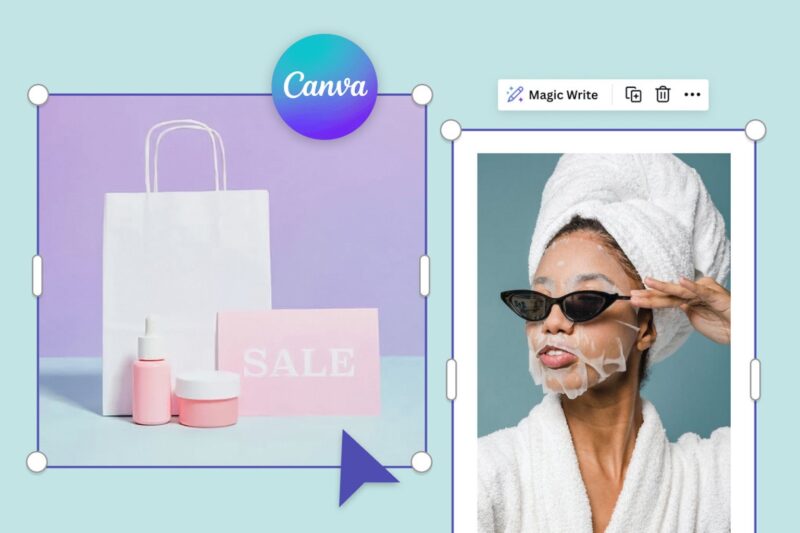
A finished photograph often becomes an Instagram carousel, rate card, media kit, story cover, client guide, or flyer. Canva is valuable because it turns those repeatable design jobs into templates instead of fresh projects every time.
Its current toolset includes customizable templates, Brand Kit features, social scheduling, and one-click background removal for products, headshots, and transparent PNGs.
Build three reusable templates first:
- A vertical social post
- A client testimonial graphic
- A pricing or mini-session announcement
- A blog or YouTube thumbnail
Save each template with safe margins for mobile cropping. The good news? You do not need to turn every image into a heavily designed post. Keep typography quiet, protect the photograph’s focal point, and export at the exact dimensions required by the platform.
Capture One Live for Faster Client Selections
Capture One Live helps clients, art directors, stylists, and remote teams review images during or after a shoot. Shared collections open in a browser, and reviewers can rate, color-tag, and comment without owning Capture One. During tethered sessions, new captures and updated edits can appear in the online collection as the work progresses.
This replaces vague messages like “the third image after the red jacket” with feedback attached to the correct frame.
Use it when:
- A commercial client must approve direction while the set is active
- A team needs to narrow a large contact sheet remotely
- A retoucher needs clearly marked selects
- A portrait client wants to choose favorites after the session
Test permissions, watermark settings, session duration, and upload speed before using it on a high-pressure production.
Pixieset for Galleries, Proofing, and Business Tasks
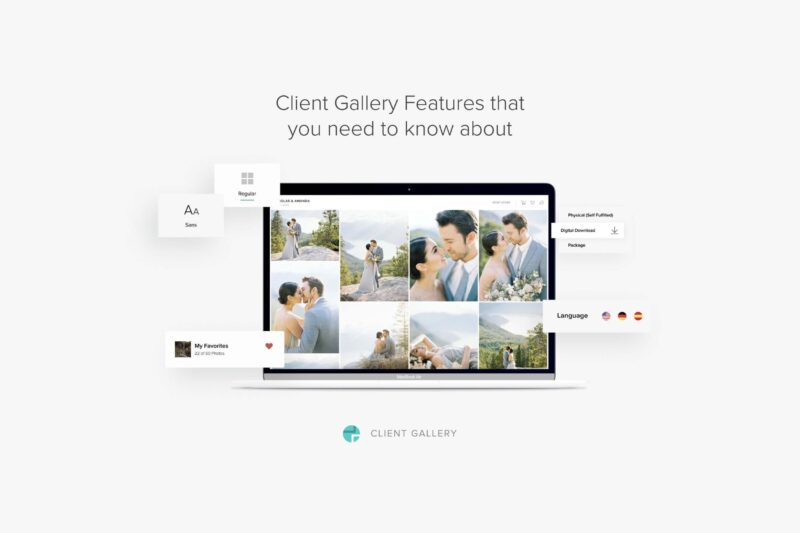
Pixieset turns completed work into a polished client experience. Its platform combines client galleries, photography websites, online stores, studio management, booking, invoicing, and payment tools. The Client Gallery product is designed for sharing, delivering, proofing, and selling photographs online.
It is especially useful for photographers who repeatedly move clients through the same steps.
A practical setup looks like this:
- Branded gallery for viewing and downloads
- Favorite selection enabled for album choices
- Print products offered only where margins make sense
Run a full test gallery before sending it to paying clients. Do not judge gallery software only by how the demo looks. Check download controls, commission or store terms, storage limits, mobile presentation, privacy options, and how easily clients can find their images six months later.
Dropbox for Working Storage and Secure Handoffs

Dropbox works well when the main problem is access, recovery, and moving large files. It syncs content across devices, supports web and app access, offers shared links, and includes file recovery and version history with retention periods that vary by plan.
For photographers, distinguish between active storage, backup, and client delivery. Dropbox itself advises checking RAW handling, full-resolution access, permissions, password protection, expiry dates, version history, and recovery when comparing cloud storage.
Cloud storage keeps files accessible. A backup protects you when the accessible copy is lost, overwritten, corrupted, or deleted.
Use a consistent folder structure such as year, client, project, and deliverables. Never send clients into a cluttered working folder containing RAW files, rejected frames, contracts, or internal notes.
TinyPNG for Faster Portfolio and Blog Images
Large files can make a beautiful photography website feel slow, especially on mobile. TinyPNG uses lossy compression to reduce AVIF, WebP, JPEG, and PNG file sizes, and its current service also supports formats including JPEG XL and animated PNG. The tool aims to reduce data while keeping visible changes minimal.
Did you know? A portfolio image does not need to be the same file you would send to a printer or commercial client.
Create separate files for:
- Full-resolution delivery
- Portfolio display
- Blog thumbnails
Resize dimensions before compression, keep the original master untouched, and inspect fine detail after optimization. Hair, fabric, foliage, gradients, and shadow texture can reveal compression damage first. For SEO, use descriptive filenames and useful alt text, but never stuff keywords into every image description.
Frequently Asked Questions
1. Can free online photo editing tools replace paid software?
They can cover retouching, resizing, composites, and social content. High-volume RAW workflows, advanced color management, tethering, automation, and dependable support may still justify paid software.
2. How many tools should a beginner photographer use?
Start with one editor, one storage service, and one delivery method. Add another platform only when a repeated problem is costing time or creating mistakes.
3. Should photographers upload client images to AI tools?
Read the privacy policy, training terms, retention rules, and commercial-use conditions first. Sensitive commissions, unpublished campaigns, and private portraits deserve stricter handling.
4. What should photographers automate first?
Automate repetitive exports, backups, appointment reminders, gallery emails, and social resizing before automating creative decisions that define your style.
Build a Smaller, Smarter Creative Toolkit
The best online tools for photographers and visual creators are not always those with the longest feature lists.
They are the ones that remove a recurring obstacle while keeping your files safe, your clients informed, and your visual identity consistent. Start with one or two manageable changes.
You might build three Canva templates, create a reliable Dropbox folder system, or test a Pixieset gallery on the next small project. Measure whether the tool saves time, reduces confusion, or improves delivery.
If it does none of those things, remove it. A lean workflow leaves more energy for the work clients actually remember: the images.